How do I change the console account I have linked to my Epic Games account?
If you accidentally linked the wrong console account (Nintendo Switch, Xbox, PlayStation) or if you are looking to change the console account linked to your Epic Games account, follow the steps below:
Open a browser, preferably in incognito/private browser mode, on your device and go to www.epicgames.com (Opens in a new tab)
On the top-right of the site, click the Sign in button
If you do not see a Sign in button, you are already signed in. Click the avatar at the top of the screen and click Sign Out to ensure you are not signed in to the wrong account. Once signed out, click the Sign in button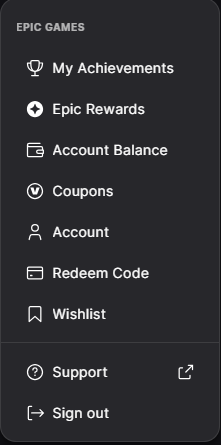
Sign in to the Epic Games account that is linked to your console account. You can either enter your Epic Games email and password or choose the console login option.
Once signed in, go to Linked accounts (Opens in a new tab) in your account settings page.
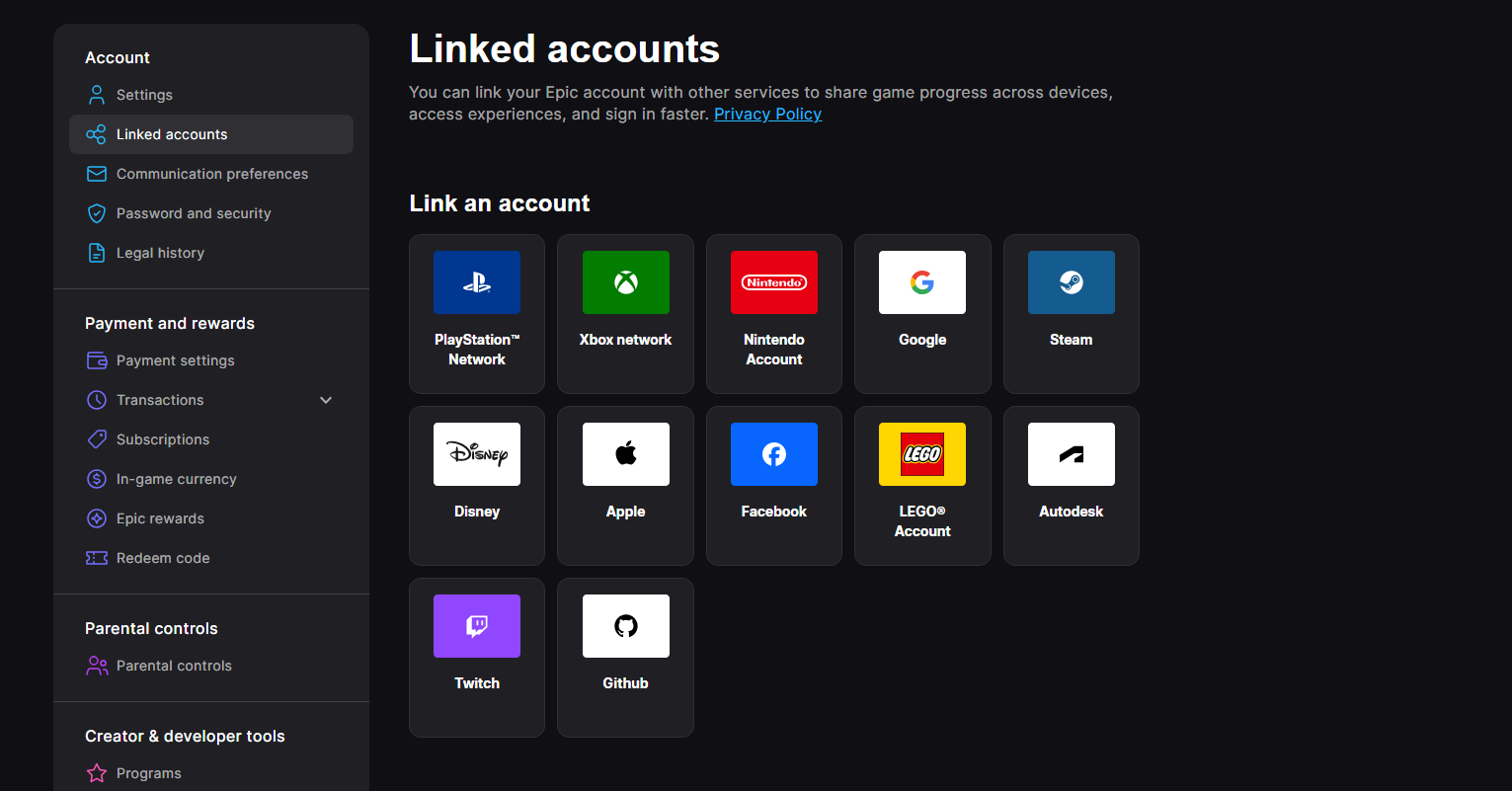
Under Your Linked accounts, select the console account you want to remove, then click Unlink.
You will receive a warning about what will happen if you remove the console account. Make sure every checkbox is checked and click Unlink.
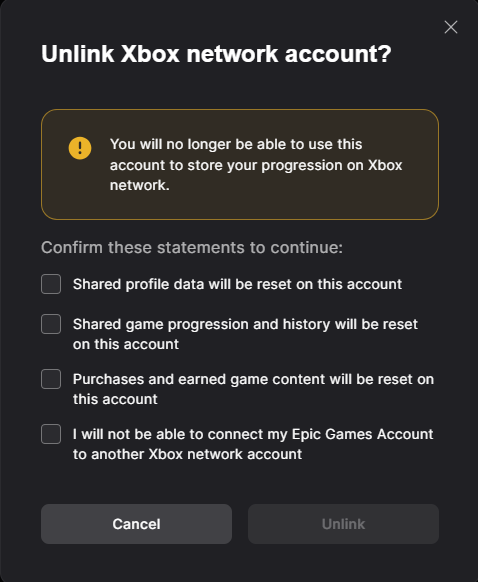
You will then see this message, confirming the removal of your console account.

Follow How do I link a different platform account to my Epic Games account? to remove the linking restriction on the account.
You can now start linking your desired console account by following How do I get my Fortnite, Fall Guys, or Rocket League progress to sync across all of my devices?
Always double-check that you're linking the intended console account.