How do I install Easy Anti-Cheat on my computer to play Fortnite?
Easy Anti-Cheat is required to play Fortnite. If you skipped this during the installation, you’ll need to install EAC before you can play.
Please note that you may need to reinstall Fortnite on the same drive where your Windows OS is to avoid issues with registry or user permissions.
Install EAC on a Windows 10 computer:
Ensure that the EAC launcher is closed.
If you are unsure if the launcher has been closed, restart your computer. This will close any running programs or processes.Launch Fortnite.
When the EAC install prompt comes up from Windows, click Yes. If EAC finishes the installation, there are no further steps for you to take. You should now be able to play Fortnite.
If you don’t get a prompt, you’ll need to manually install it using these steps:
If you installed Fortnite somewhere other than the default area, find the EasyAntiCheat_EOS folder in your Fortnite install directory where you installed the game.
If you installed to the default area, locate your EasyAntiCheat_EOS folder by following the steps below:
Open File Explorer.
You can do this by searching for File Explorer in your search bar on the toolbar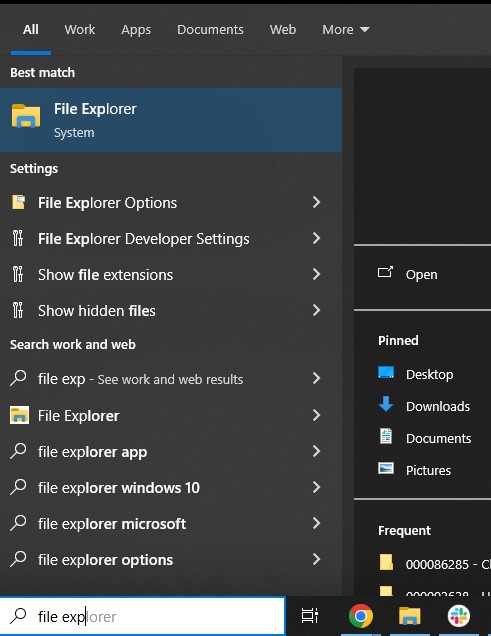
Click on This PC on the left side of file explorer to show the list of drives
Click on Local Disk (C:)
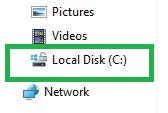
Click the Program Files (x86) folder
Click the EasyAntiCheat_EOS folder
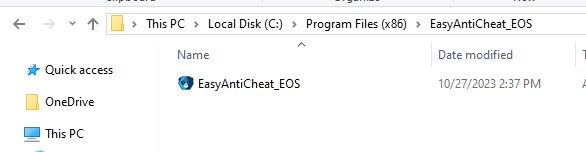
Right-click the EasyAntiCheat_EOS_Setup.exe
Select Create Shortcut. It may ask you if you want to create the shortcut on your desktop. Click Yes if this occurs.
CAUTION: DO NOT just drag the icon to your desktop. If you do this, you may cause some issues with the install.Right-click the shortcut you just created and select Properties
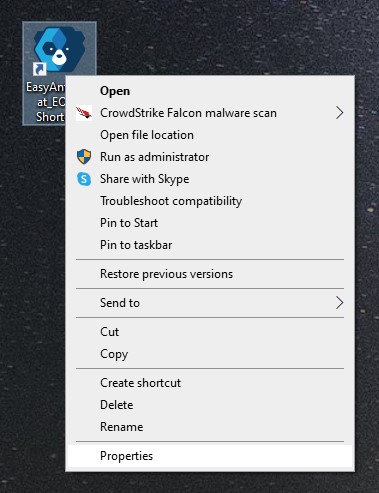
In the Target box, after the existing text, add the words "install prod-fn" without quotes. The text should show: "C:Program Files (x86)EasyAntiCheat_EOSEasyAntiCheat_EOS.exe" install prod-fn
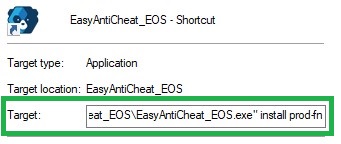
Click Apply
Click OK
Double-click the shortcut. No window will open, but EasyAntiCheat will install itself.
Start the Epic Games Launcher
Launch Fortnite.
Install EAC on a Windows 11 computer:
Ensure that the EAC launcher is closed.
If you are unsure if the launcher has been closed, restart your computer. This will close any running programs or processes.Launch Fortnite.
When the EAC install prompt comes up from Windows, click Yes. If EAC finishes the installation, there are no further steps for you to take. You should now be able to play Fortnite.
If you don’t get a prompt, you’ll need to manually install it using these steps:
If you installed Fortnite somewhere other than the default area, find the EasyAntiCheat_EOS folder in your Fortnite install directory where you installed the game.
If you installed to the default area, locate your EasyAntiCheat_EOS folder by following the steps below:
Open File Explorer.
You can do this by searching for File Explorer in your search bar in the start menuClick on This PC on the left side of file explorer to show the list of drives
Click on Local Disk (C:)

Click the Program Files (x86) folder
Click the EasyAntiCheat_EOS folder
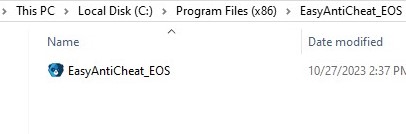
Right-click the EasyAntiCheat_EOS_Setup.exe
Select Show more options
Select Create Shortcut. It may ask you if you want to create the shortcut on your desktop. Click Yes if this occurs.
CAUTION: DO NOT just drag the icon to your desktop. If you do this, you may cause some issues with the install.Right-click the shortcut you just created and select Show more options
Click Properties
In the Target box, after the existing text, add the words "install prod-fn" without quotes. The text should show: "C:\Program Files (x86)\EasyAntiCheat_EOS\EasyAntiCheat_EOS.exe" install prod-fn
Click Apply
Click OK
Double-click the shortcut. No window will open, but EasyAntiCheat will install itself.
Start the Epic Games Launcher
Launch Fortnite.
If you're having trouble using Easy Anti-Cheat, visit: Easy Anti-Cheat Support (Opens in a new tab)